Why Organization Is a Security Feature
It may sound strange, but how you organize your vault directly affects how safe it is. When a password manager is a chaotic pile of entries called "login (1)", "login (2)", and "new one final", people stop trusting it, start keeping passwords elsewhere, and quietly undo all the protection the tool provides. A well-organized safe, by contrast, gets used every day — and a password manager that is used daily is one that keeps every other credential unique, strong, and up to date.
SecureSafe gives you several tools for structure: sections for passwords and files, folders for grouping, tags for flexible cross-cutting categories, and search that actually works. The trick is deciding on a system once and then following it consistently. This article walks through a structure that works for most people and can be adapted in minutes.
Start With Folders That Match Your Life
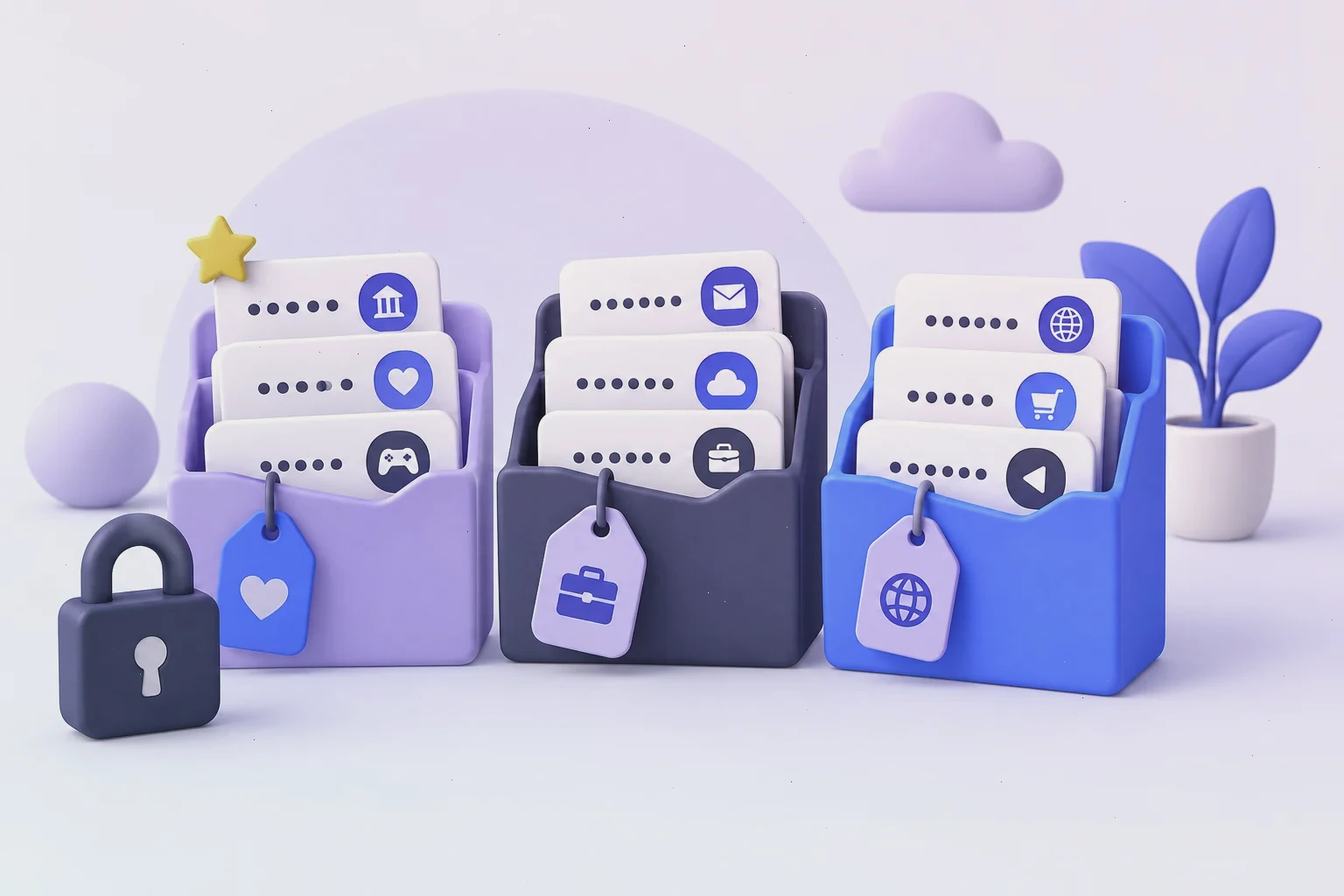
The most reliable starting point is to mirror the areas of your life, not the alphabet. Most users settle on a handful of folders such as Finance, Work, Shopping, Social, Devices, and Family. Banking cards, tax portals, and insurance sites go into Finance; corporate tools and work email into Work; streaming services and online stores into Shopping, and so on. The exact categories do not matter — what matters is that when you need a password, you already know which drawer it lives in.
Resist the temptation to create a folder for every website. Deep hierarchies look impressive in screenshots but slow you down in practice, and an over-sorted vault is almost as bad as an unsorted one. If an item genuinely belongs in two places, that is a sign it needs a tag rather than a second copy. Duplicate entries are a common source of confusion because you may update the password in one copy and never in the other.
Use Tags for Cross-Cutting Categories
Folders answer the question "what kind of account is this?", but tags answer a different question: "what do these accounts have in common?" A tag such as "shared" can mark every login your partner also uses, "work-2fa" can mark accounts where you must carry a hardware token, or "bills" can gather every service that charges you monthly. Unlike folders, a single item can carry several tags at once, which makes tags perfect for these overlapping views.
Two tags earn their keep in almost every vault. The first is "urgent-replace": attach it to any password you know is weak or reused, and clear the tag as you fix each item — turning security cleanup into a visible, satisfying checklist. The second is "review-yearly": attach it to contracts, insurance documents, and anything with an expiration date, then search for it once a year during a short maintenance session.
Naming Habits That Pay Off Forever
Names decide whether search works for you or against you. Pick one pattern and apply it everywhere: the name of the service first, then the purpose, then the username if you have multiple accounts on the same site — for example "Fidelity — brokerage — personal". Avoid names like "temp" or "old one", which become meaningless within a month. A consistent pattern also means that sorting alphabetically groups related items together automatically.
Favorites deserve a special word. Marking the five to ten logins you use daily as favorites puts them at the top of the list, which turns most sessions into a two-tap affair. Every time you complete a SecureSafe login, the items you actually need are already waiting at the top of the screen instead of hiding at position 214 of an alphabetical list.
A Fifteen-Minute Cleanup Routine
Organization is not a one-time project but a light recurring habit. Once a month, spend fifteen minutes inside your safe: search for entries without a folder, drag them into place, merge or delete duplicates, and clear the "urgent-replace" tag from items you have already fixed. Monthly maintenance keeps the system from decaying and takes less time than a single episode of a TV show.
Twice a year, go one level deeper. Check that the documents in your file safe are still current, remove accounts for services you no longer use, and rotate passwords for anything sensitive that has not been changed in a long time. If you are new to the platform and still finding your footing, our overview of the SecureSafe login and account basics is a good companion to this article, and the rest of the guide picks up where it leaves off.
Final Thoughts
A password manager is only as useful as it is findable. Folders that mirror your life, tags that capture what folders cannot, honest naming, and a small monthly routine — together these habits turn SecureSafe from a storage dump into a tool you actually enjoy opening. The payoff compounds: every minute spent organizing saves ten minutes of searching later, and a vault you trust is a vault you will keep using for years.