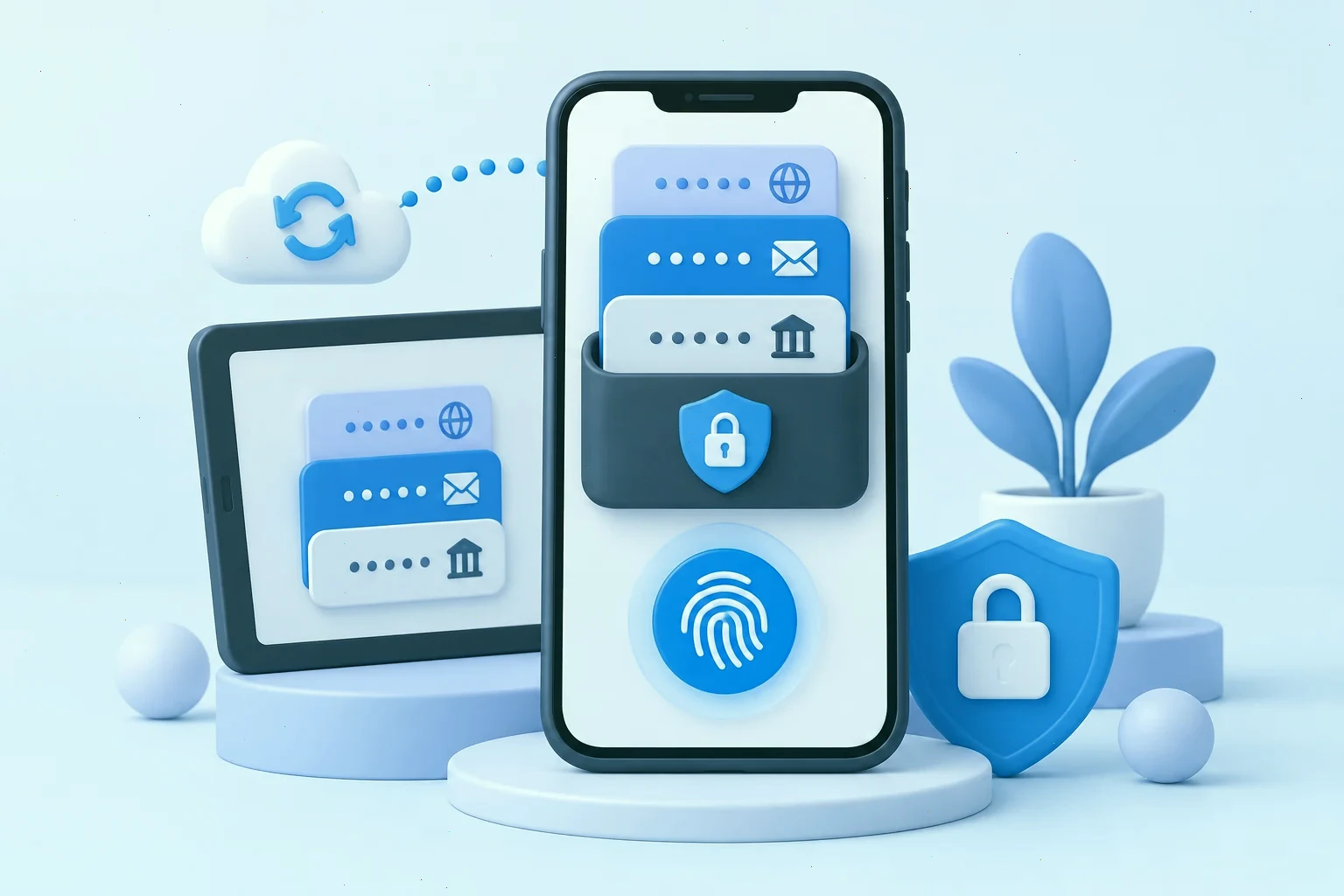
Why Mobile Is Where Your Password Manager Earns Its Keep
Most password entries happen on a phone: signing in to banking apps, shopping sites, and social networks happens on the go, in short sessions, often one-handed. A password manager that is clumsy on mobile will simply not be used, and an unused password manager protects nothing. The SecureSafe mobile apps were built with this reality in mind — the entire safe, passwords and documents alike, travels in your pocket and opens in seconds.
The mobile experience also carries the platform's security pedigree with it. Your vault remains encrypted, your SecureSafe login is protected by the same two-factor checks as on desktop, and sensitive documents stay encrypted on the device itself. This article collects the settings and habits that turn the app from merely functional into genuinely effortless.
Set Up Biometric Unlock First
The single most important mobile setting is biometric unlock. On iOS this means Face ID or Touch ID; on Android, fingerprint or face unlock, depending on your device. With biometrics enabled, the full master password is requested only after a restart or a long idle period, while every other opening of the safe takes half a second with a glance or a fingertip.
This is not just convenience — it is a security improvement in disguise. When opening the vault is effortless, people lock it promptly and never complain about doing so. A password manager that is slightly annoying gets left unlocked all day; one that opens instantly gets locked every time. Biometric unlock also means you can use a genuinely long, strong master password, because you almost never have to type it.
Configure Autofill for Apps and Browsers
Both iOS and Android allow a password manager to act as the system-wide autofill provider, and enabling this is the step that changes everything. On Android, set SecureSafe as the autofill service in the system settings; on iOS, enable it in the Passwords section of the Settings app. From that point on, login fields in any app or website offer your saved credentials automatically, complete with a biometric confirmation.
Autofill on mobile does more than save typing — it protects you from phishing. The system will only offer credentials that belong to the app or domain you are actually using, so a fake look-alike page simply gets nothing. Combined with the built-in password generator, which you can invoke right inside a sign-up form, your phone becomes the place where strong, unique passwords are created and used without any friction at all.
Your Documents in Your Pocket
The mobile app is not only about passwords. The file safe travels with you, which turns your phone into a portable vault for life's paperwork. The scan of your passport for an emergency border crossing, the insurance policy for a hospital visit, the contract you need to check in a meeting — all of it is encrypted, synchronized, and two taps away. For many users this is the feature that justifies the whole platform, because no ordinary password manager offers a genuine document safe alongside the vault.
Make a habit of capturing documents the moment you receive them: photograph or scan the paper, upload it to the appropriate folder in the file safe, and store the original where it belongs. A vault that is always current is a vault you can rely on when something goes wrong — and something eventually does, usually at the least convenient moment.
Habits for Safe Mobile Use
Mobile devices get lost, so a few precautions matter more than on desktop. First, ensure your phone itself locks automatically with a short timeout — the app's security is layered on top of the device's, not instead of it. Second, enable remote wipe for your phone through the operating system's built-in service, so a lost device can be cleaned from anywhere. Third, avoid marking the app to stay signed in forever on devices without a screen lock.
When traveling, remember that offline access lets you view your saved passwords even without a connection, which is genuinely useful on a plane or in a dead zone. And if you ever need a refresher on account basics — sign-in steps, recovery options, two-factor setup — our overview of the secure safe login process is the place to start before diving into the mobile specifics.
Final Thoughts
The SecureSafe mobile app rewards a few minutes of setup with years of frictionless use. Biometric unlock removes the typing burden, system autofill puts your credentials exactly where you need them, and the file safe turns your phone into a portable emergency vault. Configure these settings once, adopt the capture habit for documents, and your most important data will be both safer and closer than it has ever been.